Computer monitor buying guide for office workstations

Start with the workstation, not the monitor box
A practical computer monitor buying guide starts with the workstation: how the screen will be used, how deep the desk is, and what connections the computer actually supports. It should not start with the largest diagonal size on promotion. For many office workstations, a 24-inch Full HD monitor remains a space-efficient baseline. A 27-inch QHD monitor is a comfortable general-purpose upgrade. A 32-inch 4K or ultrawide display makes sense only when the user needs more visible workspace and the furniture can place the screen at a comfortable distance.
In furniture planning, the right monitor is the one that supports neutral posture, readable text, clean cabling, and reasonable energy use over several years. This article focuses on office, studio, reception, and home-workstation decisions rather than short-lived model rankings. For related furniture and workspace purchasing topics, see the buying guides section.
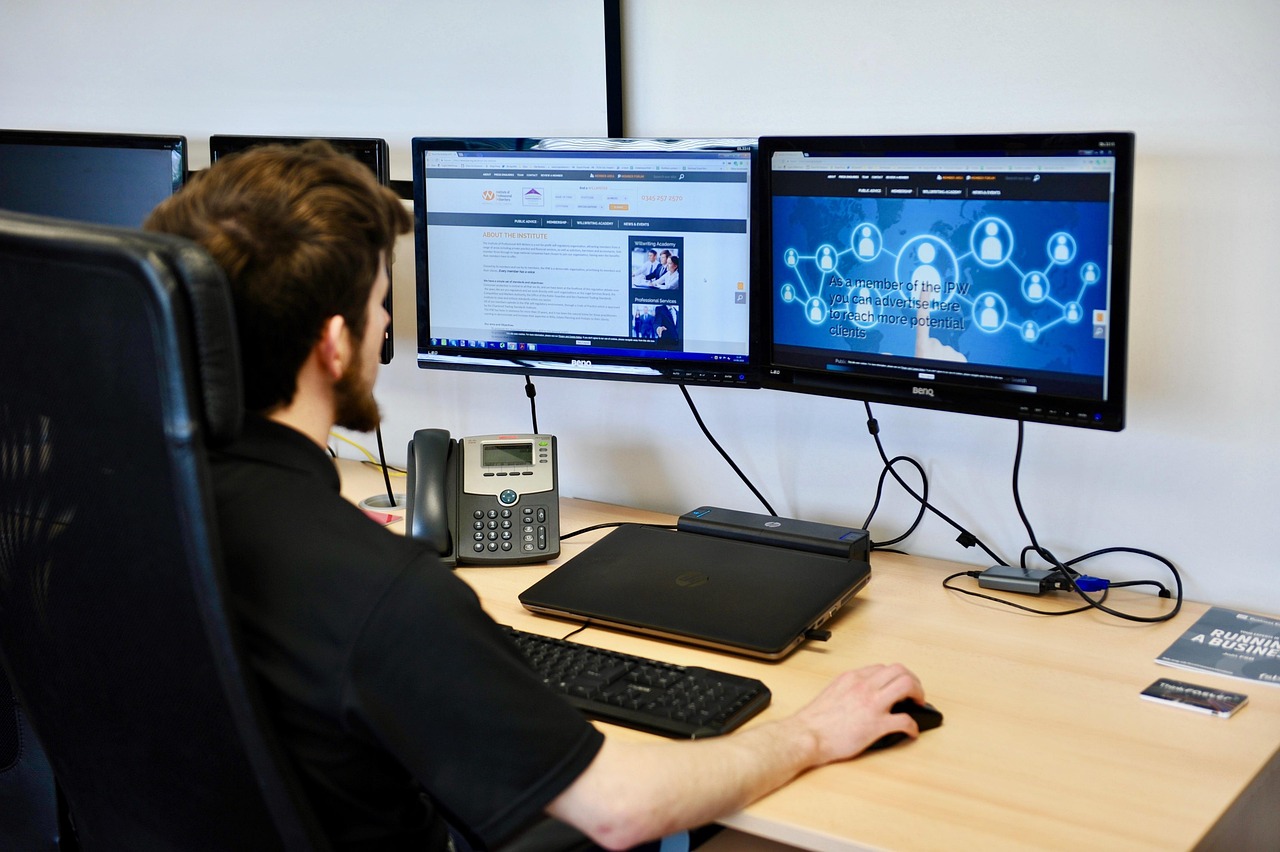
The monitor decision affects more than image quality. It changes where the keyboard sits, how far the user sits from the work surface, whether a monitor arm is needed, how cables are routed, and whether a laptop can be docked with one cable. Commercial buyers, furniture planners, and home-office users should therefore evaluate monitor specifications together with desk depth, sit-stand movement, light direction, and accessory clearance.
Fit the screen to posture and desk depth
Public ergonomic guidance from OSHA is a useful starting point for monitor placement. OSHA’s computer workstation guidance says the monitor should generally be directly in front of the user, at least 20 inches from the eyes, with the top line of the screen at or below eye level. OSHA also describes a preferred viewing distance of about 20 to 40 inches and notes that the center of the monitor is normally positioned 15 to 20 degrees below horizontal eye level.
Those measurements affect the buying decision. A large monitor on a shallow desk can force the user to sit too close, turn the head from side to side, or push the keyboard into an awkward position. A small monitor on a deep desk can make text hard to read and encourage leaning forward. The desk, monitor, keyboard, mouse, chair, and user need to work as one system.
- For shallow desks, prioritize a compact stand, a monitor arm, or a 24- to 27-inch screen rather than a deep stand base.
- For sit-stand desks, check whether the monitor stand or arm remains stable at full height.
- For shared workstations, choose height, tilt, and swivel adjustment so different users can position the screen quickly.
- For desks near windows, position the monitor perpendicular to the window where possible to reduce glare, consistent with OSHA guidance.
Choose size and resolution by task
Screen size should be considered together with resolution. A 27-inch screen at a low resolution may look large but show coarse text. A 4K screen can show very sharp text, but users may need operating-system scaling, and older computers may not drive the monitor at the intended refresh rate. The goal is usable workspace, not simply a bigger panel.
| Common setup | Best-fit use case | Furniture and planning note |
|---|---|---|
| 22- to 24-inch Full HD | Reception desks, compact admin workstations, task terminals, point-of-service areas | Works well where desk depth and width are limited; check text comfort for all-day use. |
| 27-inch QHD | General office work, reports, browser-based tools, light creative work | A practical upgrade when the desk can keep the display at a comfortable viewing distance. |
| 27- to 32-inch 4K | Detailed spreadsheets, drawings, design review, high-density text work | Confirm the computer and cable can support the native resolution at the desired refresh rate. |
| 34-inch ultrawide | Two-window workflows, scheduling, finance dashboards, timeline-based work | Requires enough desk width; a curved panel may improve edge visibility for a single user. |
| Dual monitors | Monitoring, customer support, trading, coding, document comparison | Use arms or matching stands to align heights and keep the primary screen directly in front. |
For most office buyers, 27-inch QHD is often a balanced specification because it provides more working area than a 24-inch Full HD monitor without requiring the same desk depth as many 32-inch or ultrawide setups. A 24-inch monitor may still be the better purchase for reception counters, training rooms, hoteling stations, and desks that must also hold paperwork, phones, or customer-facing equipment.
Match panel type, brightness, and refresh rate to real work
Panel technology affects contrast, viewing angles, motion, and cost. IPS monitors are common for office and design-adjacent work because they usually provide stable viewing angles and balanced color. VA panels are often chosen for stronger contrast, which can help with video viewing and darker interfaces, although motion handling and viewing angles vary by model. OLED and mini-LED displays can deliver stronger HDR performance, but they are normally more expensive and should be purchased only when those benefits are relevant to the work.
For ordinary office use, refresh rate is usually less important than readability, adjustability, warranty, and ports. A 60 Hz or 75 Hz display is adequate for email, web apps, and documents. A higher refresh rate can make scrolling and pointer movement feel smoother and is more relevant for design review, animation, gaming, simulation, or video work. Do not pay for high refresh rates if the connected computer cannot output the monitor’s native resolution at that rate.
Color and HDR need a careful reading
Color claims can be difficult to compare. If the monitor will be used for brand assets, photography, print preparation, or video, look for published coverage of relevant color spaces, factory calibration information, and independent measurements when available. For HDR, treat vague HDR-ready language cautiously. VESA DisplayHDR certification and Microsoft’s Windows HDR guidance both show why certification, display mode, color accuracy, and calibration are more meaningful than a simple HDR claim on a product page.
Brightness is a room decision
A brighter monitor is useful in a well-lit office, but brightness alone does not solve glare. Desk position, window orientation, screen coating, and overhead lighting all affect comfort. If the workspace has large windows, glossy surfaces, or frequent lighting changes, an adjustable monitor arm and careful screen angle can matter as much as the brightness number.
Check ports, docking, and mounting before purchase
Monitor ports are a common source of buying mistakes. A buyer sees HDMI, DisplayPort, or USB-C and assumes the connection will handle every feature. In practice, each port and cable must support the resolution, refresh rate, color format, charging level, and docking features required by the computer.
- For desktop PCs, confirm whether the graphics card has HDMI, DisplayPort, or USB-C video output and whether it supports the monitor’s native resolution and refresh rate.
- For laptops, confirm whether the USB-C port supports display output through DisplayPort Alt Mode, USB4, Thunderbolt, or another supported path.
- For one-cable desks, check the monitor’s USB-C power delivery wattage. USB-IF documentation explains that USB Power Delivery can support much higher maximum power levels than earlier USB charging, but each monitor model still has its own wattage limit.
- For gaming or video work, verify variable refresh rate, HDR mode, and high-refresh support at the exact resolution you intend to use.
- For shared desks, a built-in USB hub, Ethernet, KVM switch, or easy input switching can reduce clutter and simplify hot-desking.
Do not buy by version number alone. HDMI Licensing information shows that feature names such as variable refresh rate and auto low-latency mode are specific capabilities, and VESA’s DisplayPort materials similarly separate certification and feature support. In practical terms, the monitor’s product page should clearly state what each port can do. If it does not, assume the limitation may matter.
Mounting is just as important for furniture planning. Many office monitors support VESA mounting patterns such as 75 by 75 mm or 100 by 100 mm, but the buyer still needs to check the monitor’s weight without the stand, the arm’s weight range, the screw pattern, cable clearance, and whether the desk edge can accept a clamp or grommet mount. A heavy ultrawide display on a weak arm can sag, wobble, or interfere with sit-stand movement. See also: built-in furniture.
Consider energy use, sustainability, and service life
Energy labels are useful when buying many monitors for an office, school, or shared workspace. ENERGY STAR’s Version 8.0 Displays specification has been in effect since January 28, 2020, and covers computer monitors and signage displays. The specification evaluates total energy consumption using on-mode and sleep-mode power, with allowances related to screen area, resolution, and selected features. ENERGY STAR also notes that external power supplies packaged with displays must meet Level VI efficiency requirements.
The U.S. Department of Energy’s federal purchasing guidance, updated in December 2024, states that federal agencies are generally required to buy ENERGY STAR-certified or FEMP-designated products for covered categories. Even outside government purchasing, the same logic is useful: if monitors will be used across a large workplace, sleep behavior, low standby power, and power management settings become operating-cost issues, not minor details. DOE guidance also reminds buyers that screen savers do not save energy; sleep settings and switching displays off after work are more effective.
For sustainability-focused procurement, EPEAT and TCO Certified can help buyers compare environmental and social attributes beyond basic energy use. EPA describes EPEAT as a tool for institutional purchasers to evaluate, compare, and select desktops, notebooks, and monitors based on environmental attributes. TCO Certified’s current criteria framework covers areas such as climate, substances, circularity, and supply chain. These labels do not replace checking the monitor’s actual fit for the workstation, but they add a structured way to compare products when several models meet the same functional need.
Service life also depends on support details that are easy to overlook: warranty length, defective-pixel policy, availability of replacement power adapters, stand quality, and whether the monitor can be moved to an arm later. A slightly cheaper monitor can become more expensive if it requires a separate dock, a new stand, or early replacement.
A practical buying checklist
Before approving a monitor purchase, review the specification as you would review a desk, chair, or storage component: by fit, adjustment, durability, and user comfort.
- Define the primary task: documents, dashboards, design, coding, video, reception, training, or shared desk use.
- Measure the desk depth and confirm the monitor can sit about 20 to 40 inches from the user when possible.
- Select size and resolution together, not separately.
- Check stand adjustment for height, tilt, swivel, and rotation if portrait use is needed.
- Verify every required port at the intended resolution and refresh rate.
- If using USB-C docking, confirm power delivery wattage, USB hub speed, Ethernet, and cable requirements.
- Check VESA mounting compatibility if a monitor arm is planned now or later.
- Review brightness, coating, and window placement for glare control.
- Compare energy labels, sustainability certifications, warranty, and defective-pixel policy.
- Avoid paying for features that the user, computer, or workspace cannot benefit from.
The safest purchase is rarely the most dramatic specification. It is the monitor that fits the furniture, connects cleanly, supports neutral posture, and gives the user enough readable workspace without creating new ergonomic or cable-management problems.
Frequently asked questions
What monitor size is best for office work?
For many office workstations, 24 inches is compact and economical, while 27 inches offers more comfortable workspace for documents, browser tabs, and spreadsheets. A 32-inch or ultrawide monitor is useful when the user needs more visible information at once and the desk can place the screen at a comfortable distance.
Is 4K worth it for a computer monitor?
4K can be worth it for sharp text, detailed spreadsheets, drawings, and creative work, especially at 27 to 32 inches. It is less valuable if the computer cannot support 4K at the desired refresh rate, if scaling makes software awkward, or if the user mainly performs simple task-based work.
Should an office monitor have USB-C?
USB-C is valuable for laptop-based workstations when it carries video, data, and enough power to charge the laptop through one cable. Check the wattage and supported display mode carefully because not every USB-C port or cable provides the same capabilities.
Are curved monitors good for desks?
Curved monitors can work well for ultrawide single-user setups because the edges may feel easier to view. They are less ideal for shared viewing, reception counters, classrooms, or any workstation where several people need to see the same screen from different angles.
How far should a monitor be from the eyes?
OSHA guidance gives a preferred viewing distance of about 20 to 40 inches, with the monitor directly in front of the user and the top line of the screen at or below eye level. The exact distance should still depend on screen size, text size, vision needs, and desk layout.